Introduction
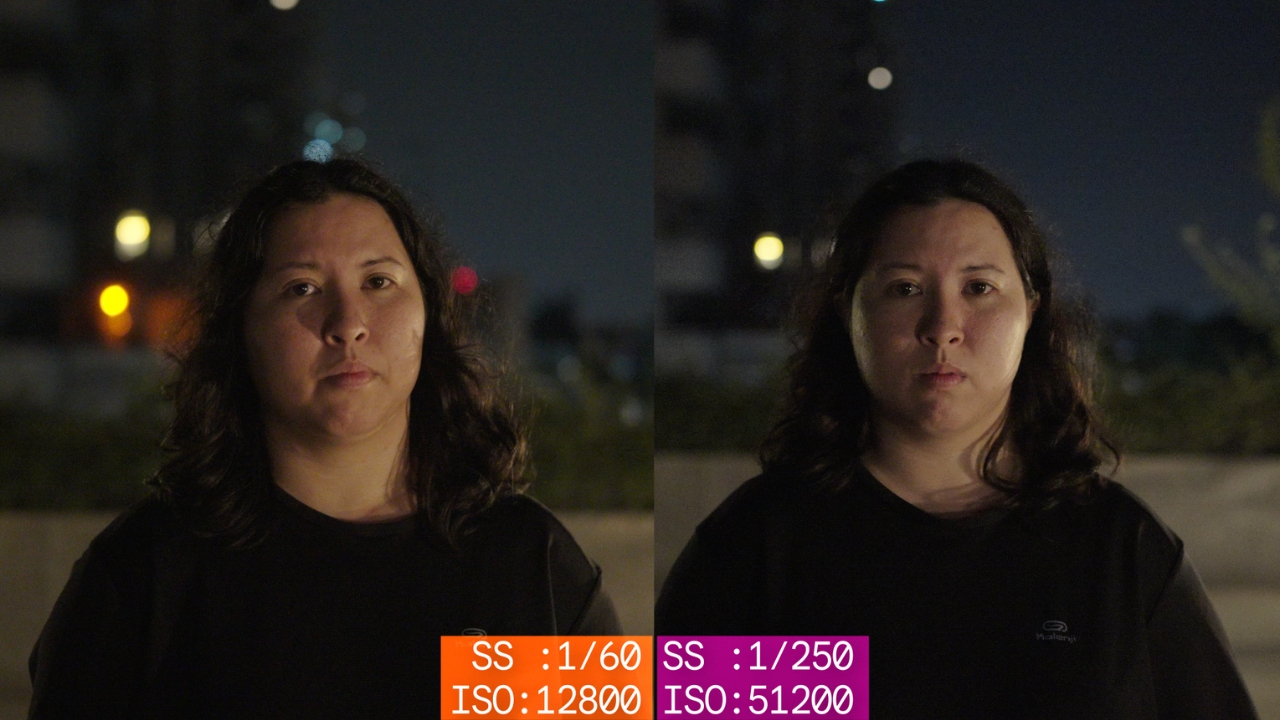
We’ve all been in situations where we visited a beautiful location and ended up with noisy and blurry footage for whatever reason. Especially in the evening times, we either usually end up with very noisy video clips when our cameras bump up the ISOs to compensate for the lack of light, Or when in dark indoor situations phone cameras or even professional cameras add a ton of noise reduction making the video clips super mushy with utter lack of detail or texture.
We’ve all faced those situations haven’t we?
Perhaps we would want to see how some of our ancient 240p family travel footage would look in 4K today, the kinda footage our parents and grandparents would’ve filmed when we were kids.
Well, this is 2026 and of course with the help of AI, we have tools at our disposal that could help restore the mushy noisy clips or upscale clips to higher quality or even add slow-motion effects to them.
I’ve wished more times than I can count that my camera had super slow-motion recording capabilities like 240 or more frames per second to record wildlife and sports. There is only so much we can do with the limited potential of the recording hardware we own. That’s where we resort to post processing software tools.
Lets take a look at one such tool from Aiarty called Aiarty Video Enhancer.
AiArty also offers AI Image Enhancer and Image Matting tools for professional photographers – perhaps, that’s for another time.
Video Explanation
I Compared Aiarty with DaVinci Resolve & Topaz Video AI to Enhance Videos – Surprising Results!
What is Aiarty Video Enhancer
Aiarty Video Enhancer is a tool that helps enhance video clips at many levels using their specialized AI models as per our desired output.
We will dive deep into their capabilities shortly.
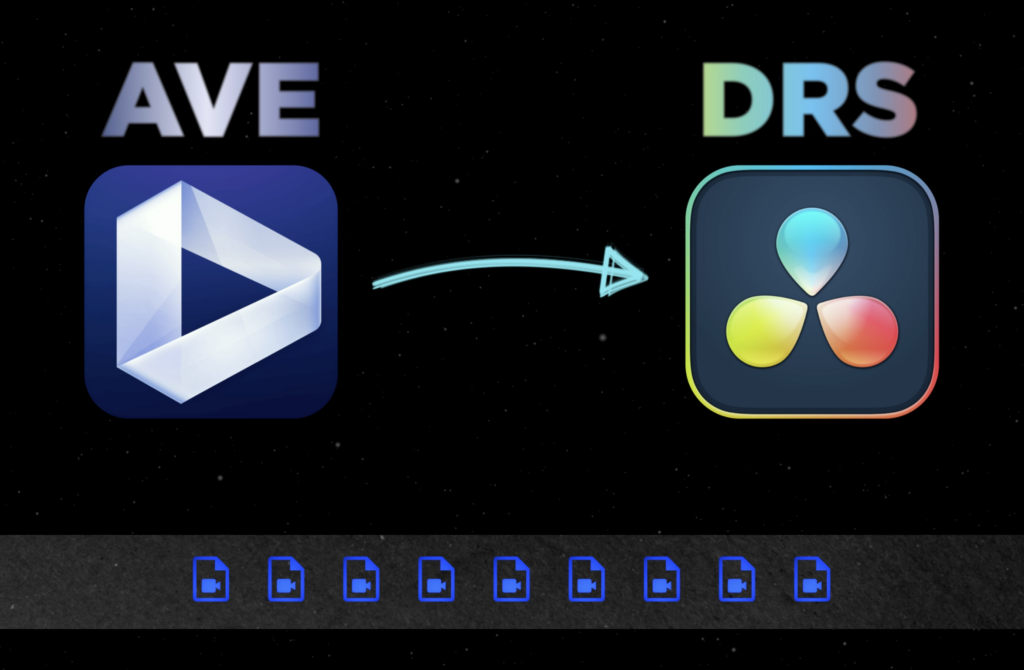
If you think about it, Aiarty Video Enhancer is a middle man who modifies the clips from multiple recording devices to a relatively similar usable level before importing it into a more advanced editing software like DaVinci Resolve Studio. When all the source clips are at a similar quality on the timeline of DaVinci Resolve Studio, it is much easier to visualize the output for editors like me.
Aiarty Video Enhancer AI Models and Tips
I like the Aiarty Video Enhancer for its simplicity. It can do all of the following in a single page – few clicks workflow:
- Video Denoise
- Deblur
- Texture Detail
- Slow Motion
- Audio Denoise
- Color & HDR
There are just 3 models to select based on our requirement and decide on the level of upscaling for the most part.
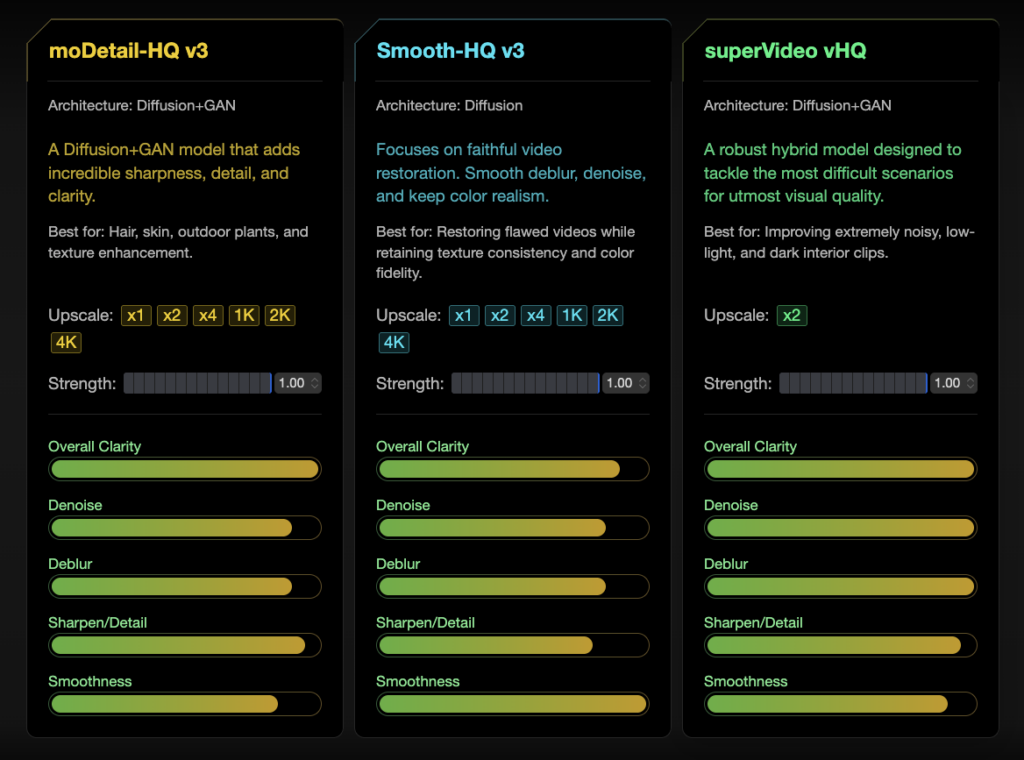
moDetail-HQ v3 – Generates More Details
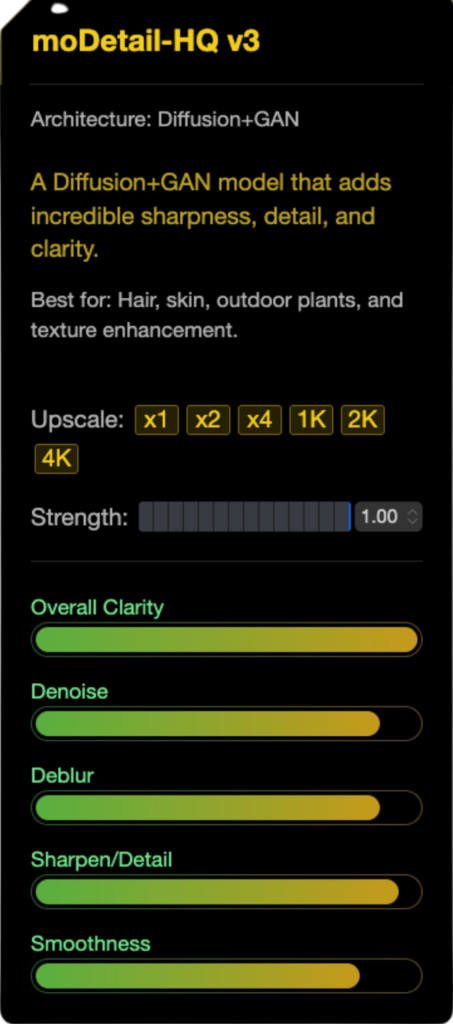
moDetail-HQ combines Diffusion and GAN technologies to deliver powerful de-blurring and denoising, with a particular edge in recovering fine textures such as hair strands, flowers, and outdoor plants.
It enhances clarity and sharpness while preserving intricate image details and balanced natural colors, making it ideal for high-precision restoration.
Especially effective in daylight outdoor scenes, nature shots, and portraits where sharp texture and natural detail are essential.
It supports 1x, 2x, and 4x upscaling. [ Diffusion + GAN ]
Smooth-HQ v3 – Eliminates Video Flaws
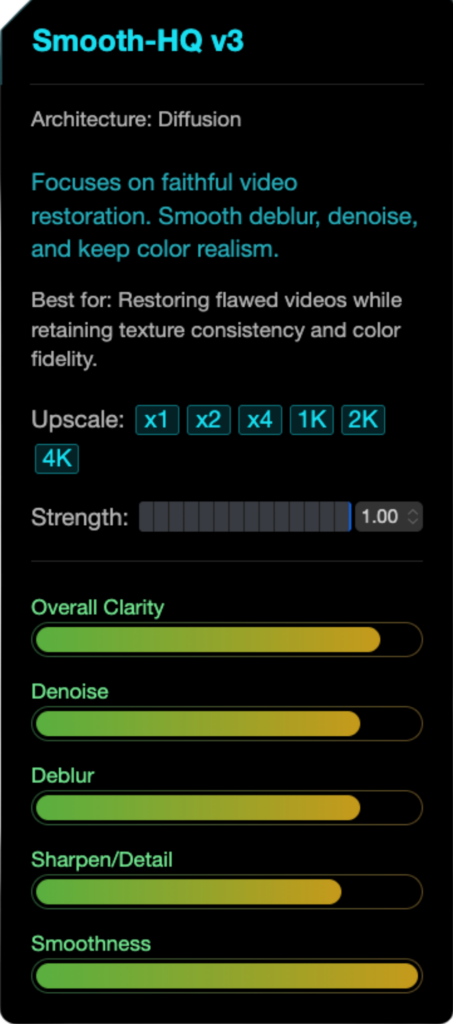
Smooth-HQ uses pure diffusion technology for balanced and natural de-blurring and denoising. It excels in removing video flaws while preserving authentic color and texture continuity, ensuring smooth and clean output.
Ideal for general video enhancement, especially useful in scenes with
- People,
- Indoor lighting, or
- Moderate imperfections
that need subtle yet effective restoration.
Supports 1x, 2x, and 4x upscaling. [ Diffusion ]
superVideo vHQ – Optimized Low-light Denoising
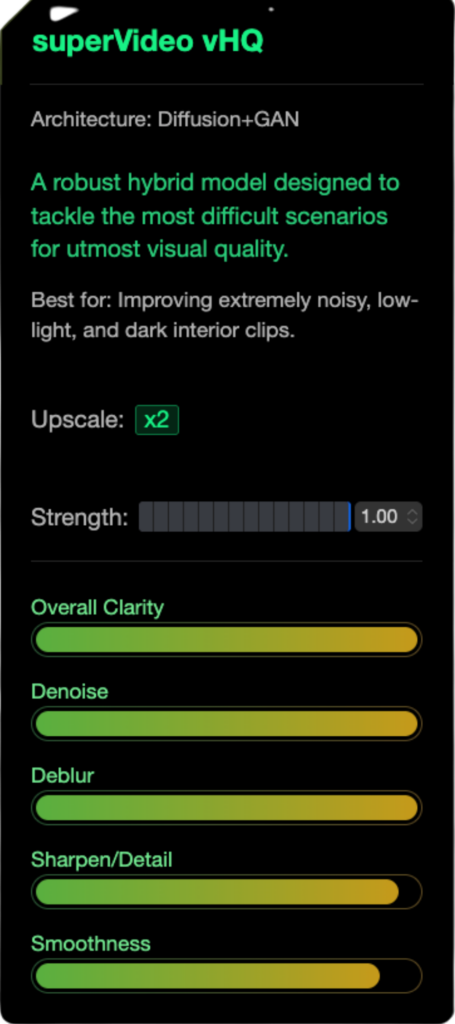
superVideo leverages Diffusion and GAN with a strong focus on denoising under extremely low-light conditions. It delivers industry-leading noise reduction and detail recovery even in very dark scenes, such as
- night skies,
- urban night-scapes, or
- dimly lit interiors.
While slower in processing, it ensures the best possible quality when de-noise performance is the top priority.
Available in 2x scaling. [ Diffusion + GAN ]
More information on using Aiarty Video Enhancer
x1 Instructions for using x1 scaling.
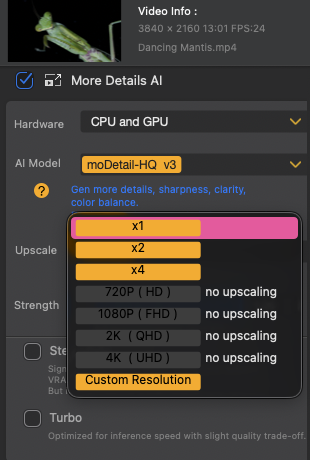
Enhance video quality without changing the original video resolution. Ideal for improving low-quality videos that don’t need upscaling.
Select a short 5-10 second segment from a tricky part of your video to test settings before rendering the full project.

Two methods are available:
- Trim Handles: Drag the handles from the start or end of the timeline to define your segment.
- In/Out Point Buttons: Move the playback scrubber to your desired start, click [, then move to the end and click ] for precise selection.
Speed Up Your Processing with Turbo Mode or Faster AI Models
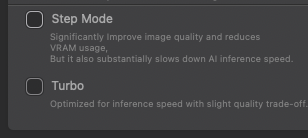
- Turbo Mode: Significantly reduces system resource usage and boosts processing speed, with only a minor trade-off in output quality.
- Faster AI Models: Select moDetail-HQ or Smooth-HQ instead of superVideo vHQ when quality differences are minimal.
Pretty simple isn’t it. It is not a tutorial but yeah, just wanted to explain the simplicity. Refer to the full guide if necessary.
Aiarty Video Enhancer vs DaVinci Resolve Studio
Aiarty Video Enhancer is a more specialized tool for 4 of Davinci’s inbuilt tools:
- Noise Reduction Comparison
- Upscaling video Comparison
- Slow-motion Comparison
- Audio Denoise
| Aiarty Video Enhancer | DaVinci Resolve Studio |
| Noise Reduction | Noise Reduction |
| Upscale | AI Super Scale |
| Frame Interpolation | Speed Change |
| Audio Enhancer | Voice Isolation |
I want to compare and provide my opinions in regards to the output quality and convenience between them.
Noise Reduction
One of the awesome features of DaVinci Resolve Studio is the noise reduction capability.
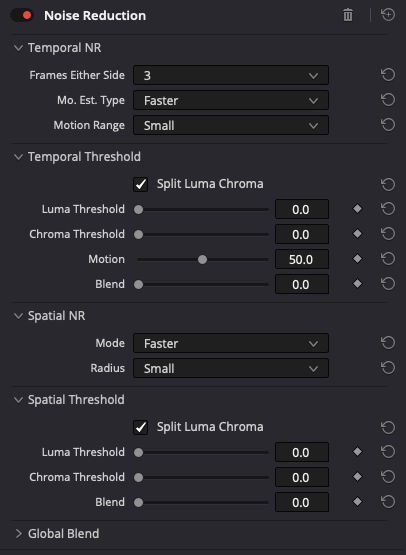
Noise Reduction in DaVinci Resolve Studio is as versatile as it is flexible. It is versatile as the noise reduction can be applied over RAW footage, LOG footage or REC709 footage.
It is flexible as there is a granular control over the noise reduction applied on spatial noise and temporal noise and can have different controls for chroma and luma noise.
Aiarty Video Enhancer on the other hand, applies the noise reduction based on the chosen model and the only control is over the strength of the application.
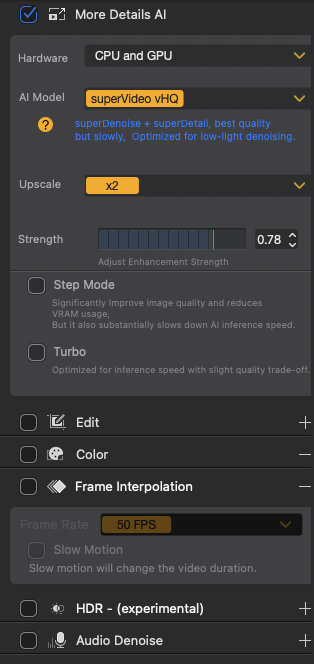
I understand why they have it this way. They want the heavy lifting of the Noise Reduction application to go solely on the model. This will in fact train and enhance the model.
I don’t see any negatives on this part of the feature if it works well.
Well, when it works well, it looks great. I can’t see it is better than DaVinci Resolve Studio but I like the fact that the Noise Reduction, is also applied with the upscaling feature all at once.
Upscaling
When it comes to upscaling, we will have to do it for each clip at the inspector level. This is handy to upscale the lower quality clips right from the timeline level.
While this feature is available in a different page in DaVinci Resolve Studio, sometimes, it would be helpful to have everything in one page.
In Aiarty Video Enhancer, upscaling feature and the upscaling level is included right below the model selection. This is useful in a different way.
When it comes to the quality of the output, I should say that the DaVinci Resolve Studio doesn’t look too artificial but the Aiarty Video Enhancer literally looks like one of those smooth textured AI generated videos.
This is particularly noticeable on the characters and numbers.
But that said, when we control the strength of application, we can make it look a lot more realistic.
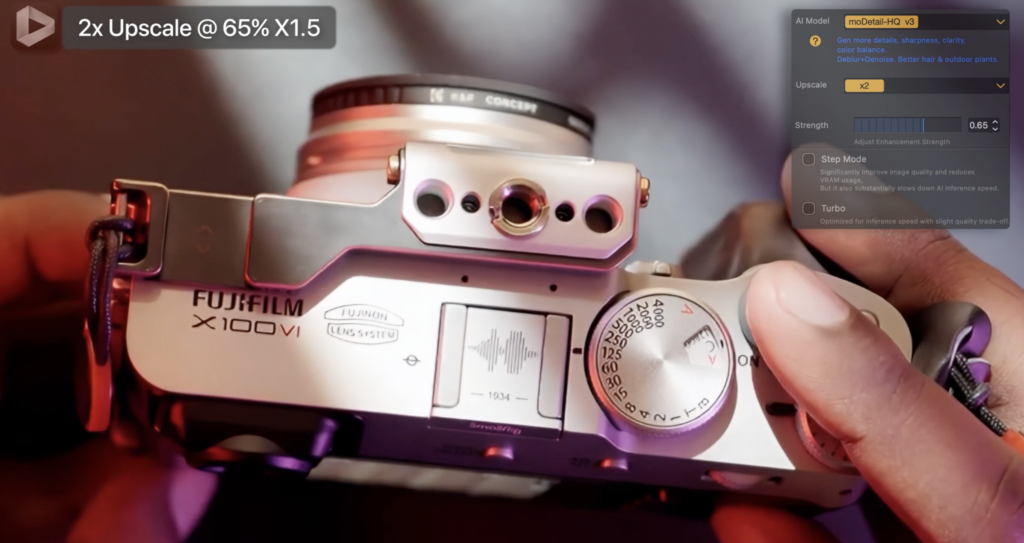
Again, neither DaVinci Resolve Studio or Aiarty Video Enhancer is better than each other. Both are doing a good job.
Slow-Motion
Slow-mo in the post is mostly done by inserting the generated frames between frames in post. For smooth playback at 24 frames per second, there are other processing done by software such as frame interpolation in Aiarty Video Enhancer or Topaz Labs and optical flow in DaVinci Resolve Studio.
While processing the same clips, for subjects moving at a reasonable speeds without much texture, both do a good job in slowing down the clip to 24FPS.
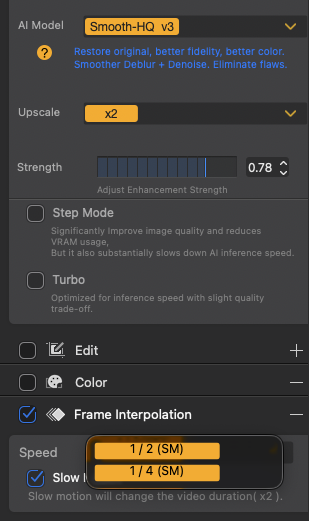
I like the fact that the Aiarty Video Enhancer also applies noise reduction and upscale the clips with just 2 clicks.
In DaVinci Resolve Studio, we need to click on every setting manually to get the required results. This could be overwhelming for some.
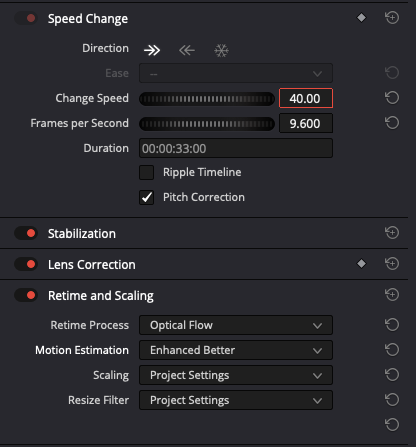
When working on clips like birds in flight which are usually super fast or product close-ups with complicated textures, both software introduces a lot of artifacts.
This is pretty common.
Both are usable and I like both of them. This is kinda tie to me.
Audio Denoise
I was pleasantly surprised by this feature in Aiarty Video Enhancer. In fact, it works really well in my opinion.
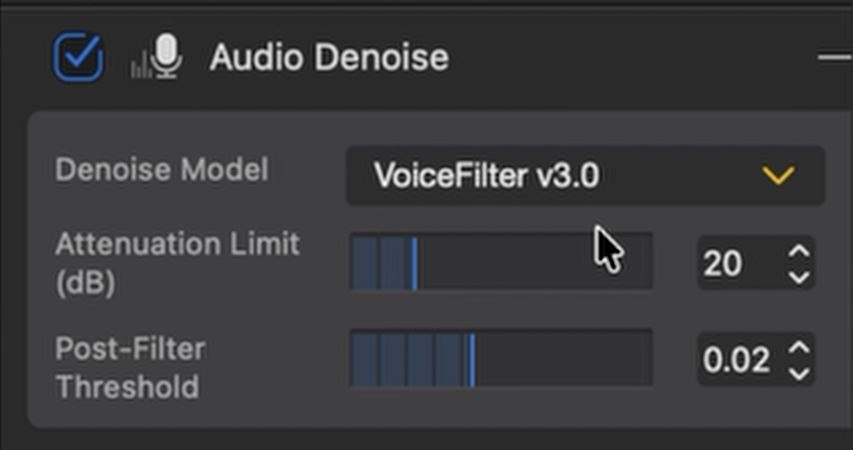
I regarded the Ai Voice Isolation in DaVinci Resolve Studio to work very well for voice-overs. But this one is something I really like.
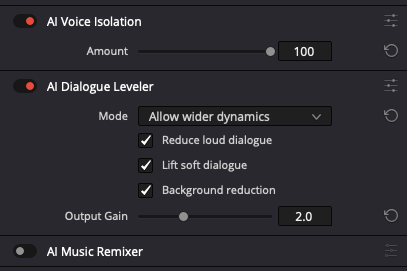
Audio samples are in the video.
When it comes to DaVinci Resolve Studio vs Aiarty Video Enhancer, it all comes down to the workflow. I will expand on that later.
Aiarty Video Enhancer vs Topaz Labs
I am talking about a software from 3 years ago and several updates ago. Today, a lot might’ve changed. I don’t know.
Aiarty Video Enhancer performs marginally better in terms of AI processing than the Topaz Labs of yesteryear, but there are some aspects I need to mention as the differences between them in other regards.
It is mostly related to pricing, support and interface.
Pricing
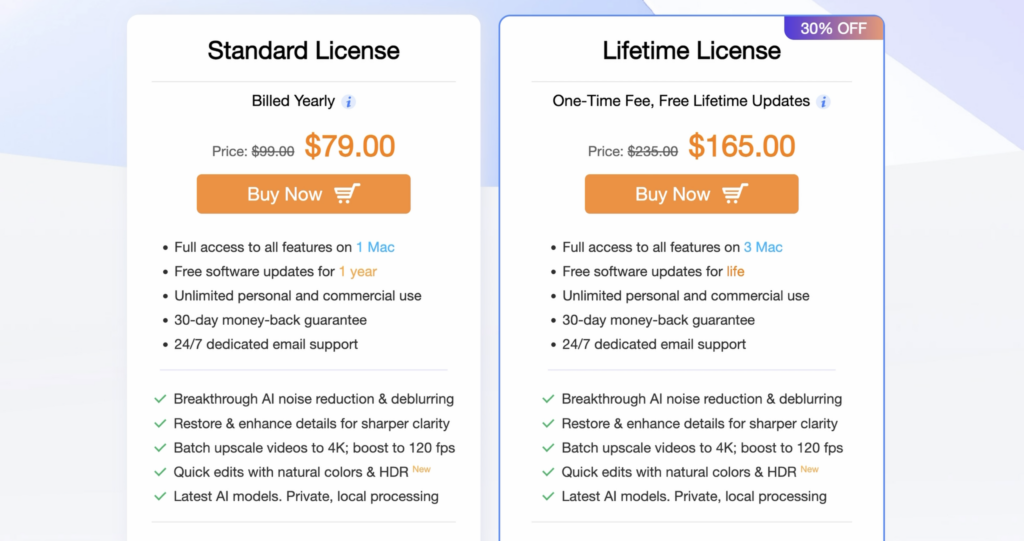
Obviously comparing the price, Topaz labs charges like $69 for a month while Aiarty Video Enhancer costs $99 per year ($79 with discount). That’s obviously a lot less. I am pretty sure tho, you don’t get that much of a performance boost using Topaz Laps Video paying so much more than Aiarty Video Enhancer.
Support
When it comes to legacy software support, I have to commend Topaz for making the software from 3 years ago available to download even now. Of course I paid a lot for it, they better do it!
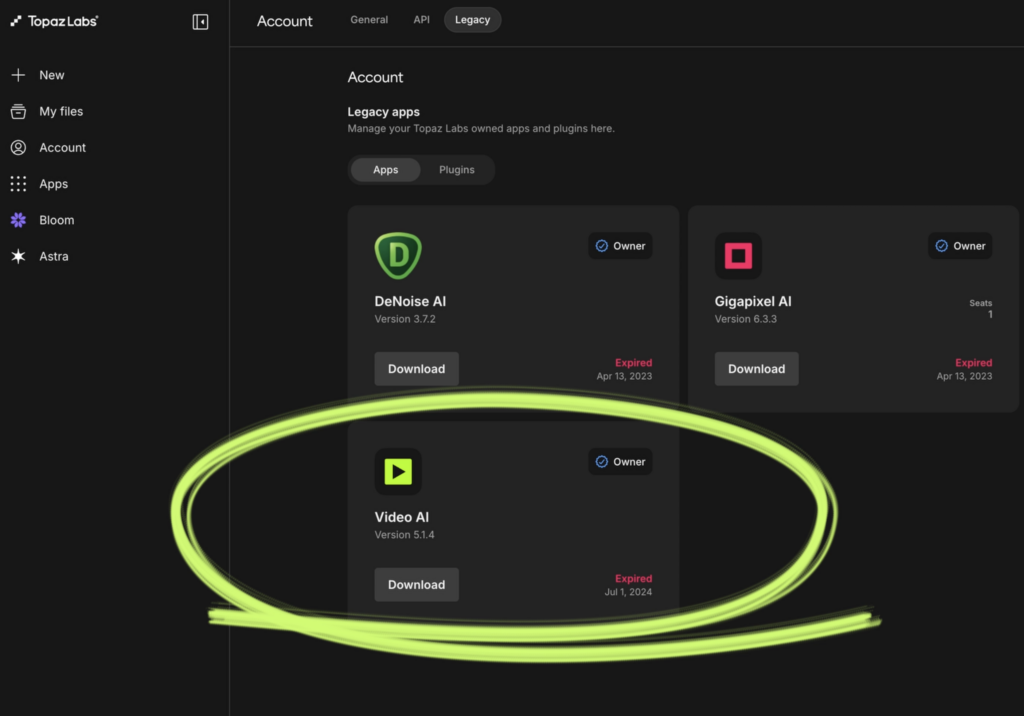
I purchased Topaz Video AI for $299.99 to use it on my then Windows laptop. Now, after about 3 years, I am still able to download a mac version of it and use it on my M5 pro chip mac. That’s really nice.
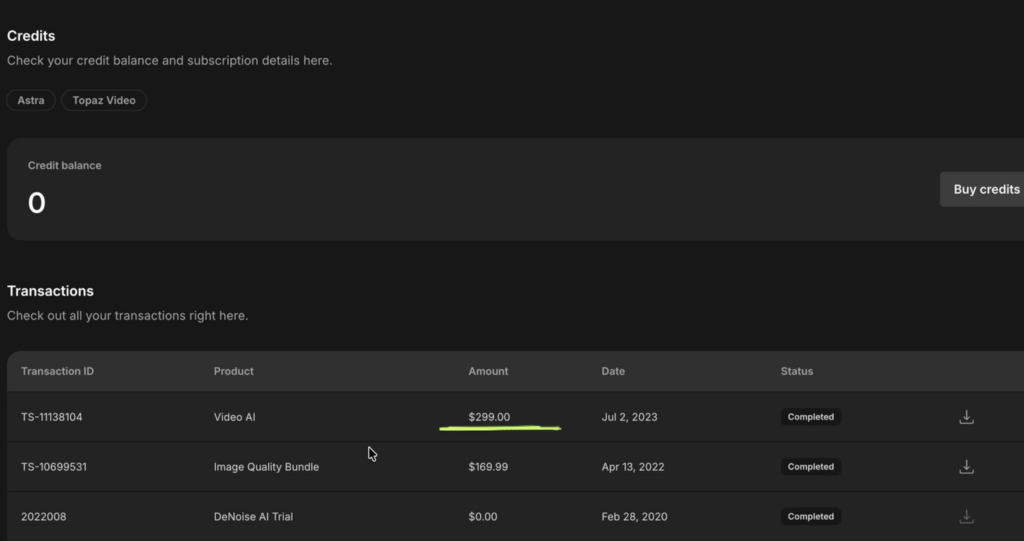
I hope Aiarty Video Enhancer could take a page from their book and support the owners of the software long after the purchase.
Interface
It is not going to be a 1 on 1 comparison but rather a list of features/options that I hope Aiarty Video Enhancer will include in the future if it doesn’t already have.
Although Topaz Video AI has more playback options, I think both pretty much provide sufficient information to start to process the imported video.
That’s where we start to see the difference in options.
Export options
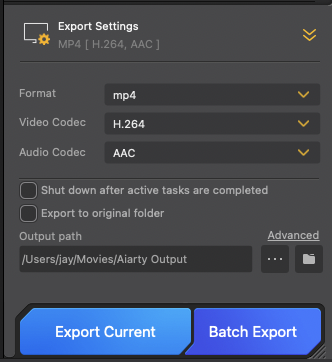
I like the fact that the Aiarty Video Enhancer has some export options suitable for the project requirements.
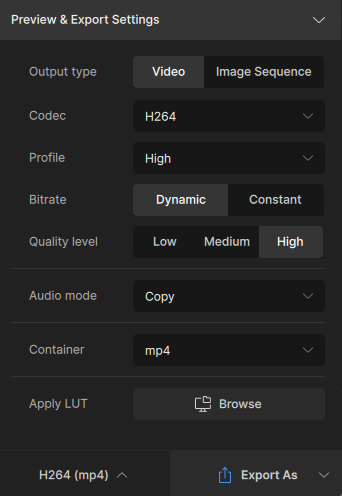
But I would prefer it to have more like Topaz Video AI’s export options – for example: applying LUT and choosing bit rates.
There are several styling LUTs that I may wish to apply for some of my clips while exporting.
Others
Topaz Video AI also has options for adding grains and to stabilize the videos.
Those features seem to justify the price we pay for.
The slow-mo videos from Topaz Video AI from back then are just meh.
Well, that’s about it between Aiarty Video Enhancer and Topaz Video AI.
Areas of improvement
Lacking chroma noise – Denoising
When shadows are lifted in the post, there is some introduction of artificial chroma noise. You may also see the chroma noise on the high ISO clips.
These are pretty common.
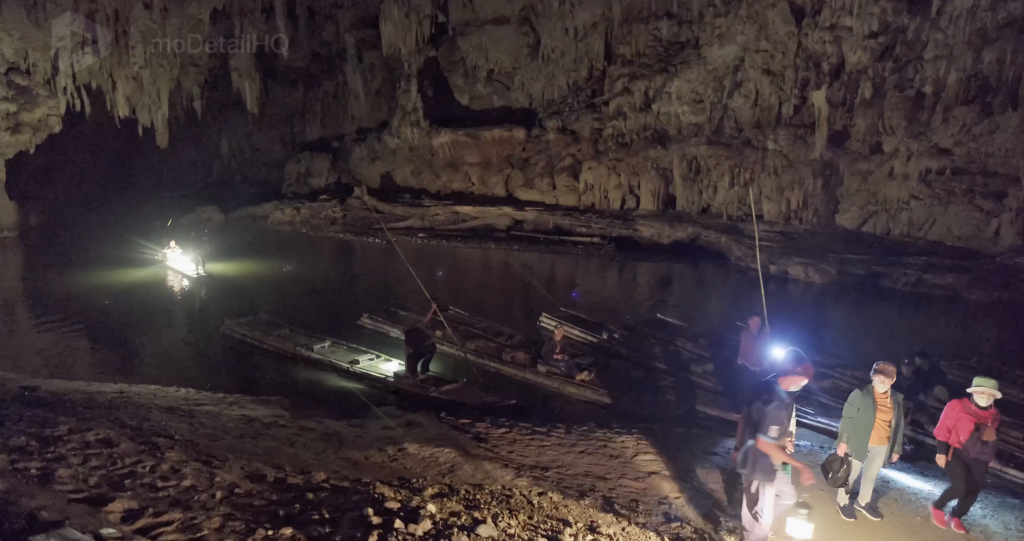
I tried the noise reduction features of Aiarty Video Enhancer on my edited cave footage which had a lot of chroma noise when the shadows were lifted.
Aiarty Video Enhancer either introduced white dot artifacts or made the noise blotchy.
Mind you, the sample footage I used to test is of quality that is extremely challenging for any AI restoration solution and is not representative of typical real-world use cases.
I discussed it with Aiarty and here is the technical explanation from the their development team:
- The source footage suffers from severe information loss due to the extremely challenging shooting environment.
- There is significant motion blur and focus instability.
- Lighting conditions are highly unstable, causing large variations in noise patterns between frames.
- The footage has limited dynamic range, with substantial texture loss in dark areas.
- Compression artifacts are also visible in darker regions of the image.
As a result, the AI is effectively performing an “extreme reconstruction” task, where there is inevitably a trade-off between preserving detail and achieving a cleaner image.
Regarding the white speckles observed with the More Detail model, this model prioritizes detail generation and enhancement. Due to the extreme brightness fluctuations in the original dark footage, the model may interpret these unstable light patterns as edge information that should be emphasized, resulting in the appearance of white dots.
As for the remaining noise blocks seen with the Smooth model, this model is intentionally more conservative and focuses on preserving a natural look. Since the original footage already contains block-like noise patterns, especially in darker regions, the model tends to retain some of these characteristics rather than aggressively removing them and risking the loss of real image information.
The clips are still usable compared though. It is just that it is extremely difficult to remove these noises.
Generative AI Feel
The premise of Aiarty Video Enhancer is generating details where it is lacking. That means, the feel of AI generated output makes sense.
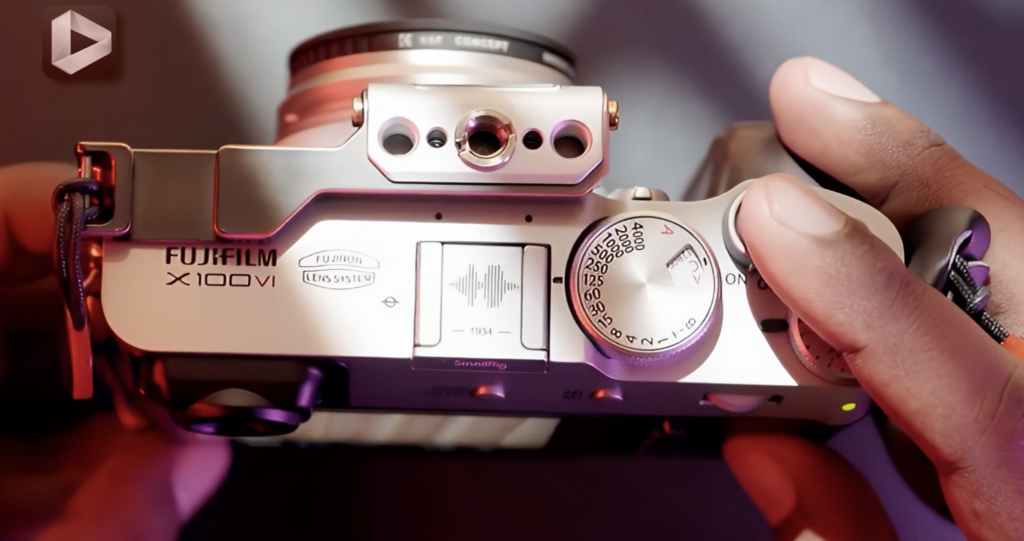
Although reducing the strength produces realistic results, it can be improved.
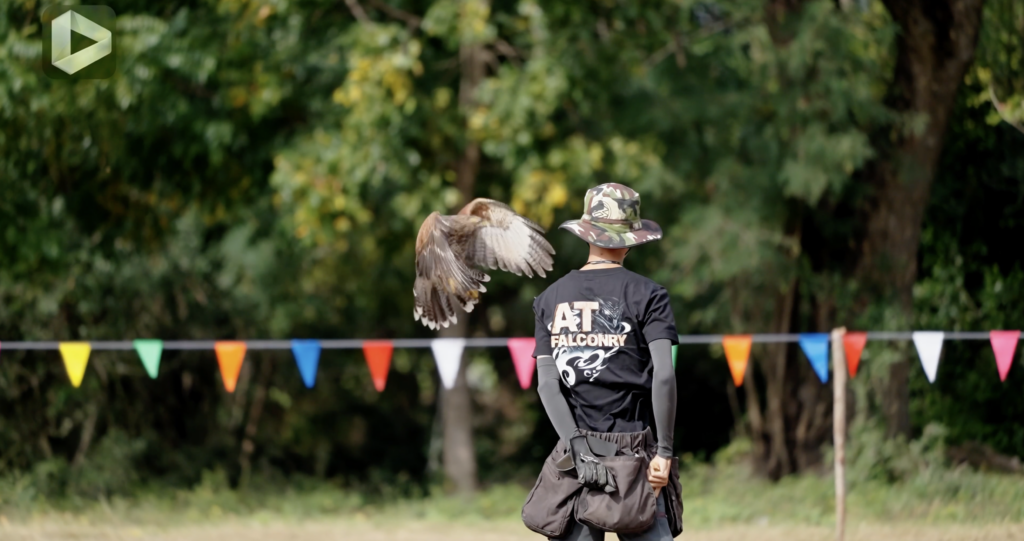
Slow-motion artifacts
Hope the slow-motion artifacts when it comes to frame interpolation, will be minimized in the future.
Interface
Displaying the time elapsed after processing would be helpful. For now, time elapsed is only being displayed while the clip is being processed.
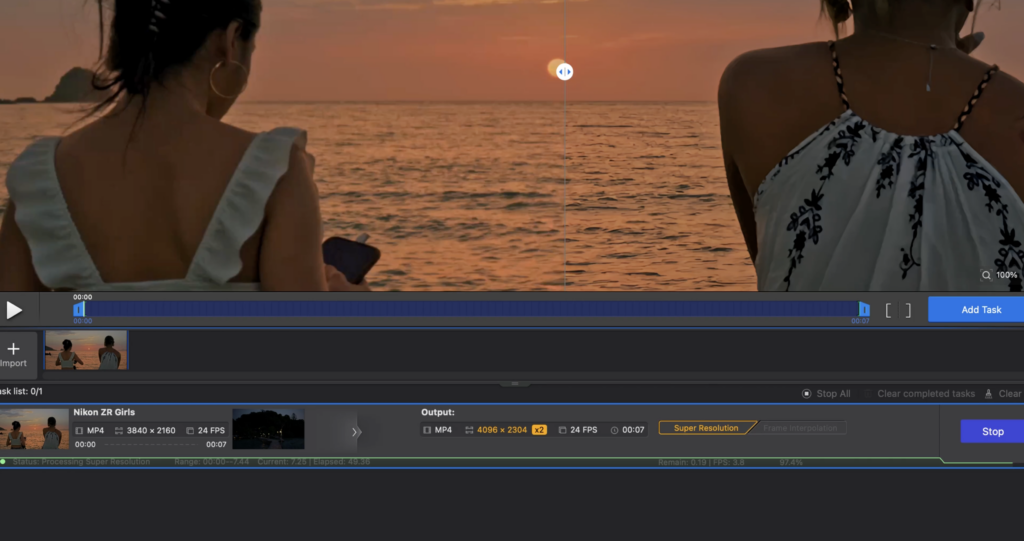
It would be nice to see the estimated output file sizes when different models or options are selected. This will help in choosing an appropriate output location.
Usability
It would be nice to copy the setting from one clip and paste it to the other clips in the imported area (let’s say bin).
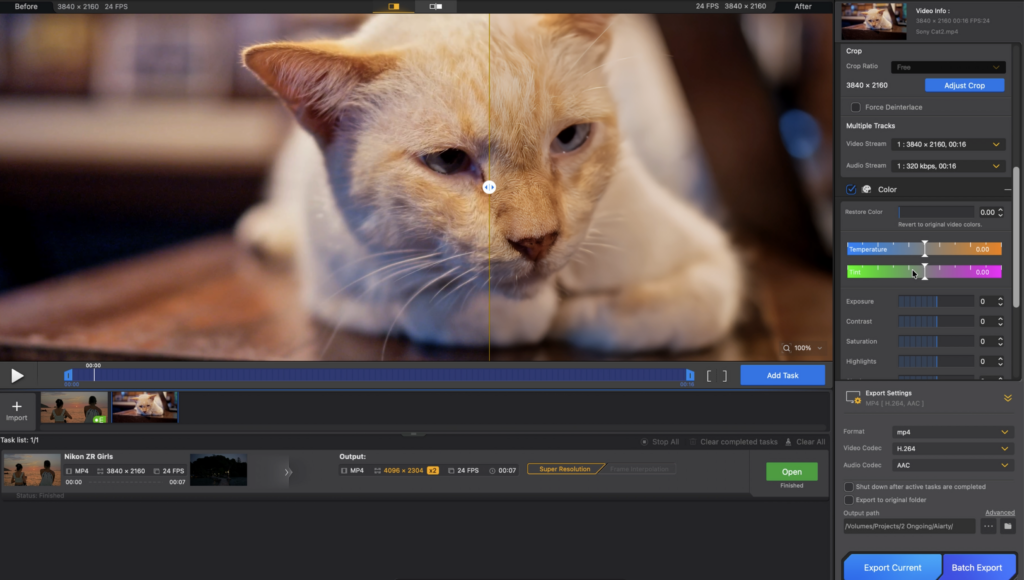
For example, I’ve adjusted the colors and exposures of a clip and I have a similar clip for which I want the same settings, it would be easier to just copy paste the settings rather than manually set the values.
This would be helpful for a large number of clips in the bin.
Workflow Bottleneck
The biggest bottleneck I see is the lack of plugin support for DaVinci Resolve Studio and Adobe Premiere Pro.
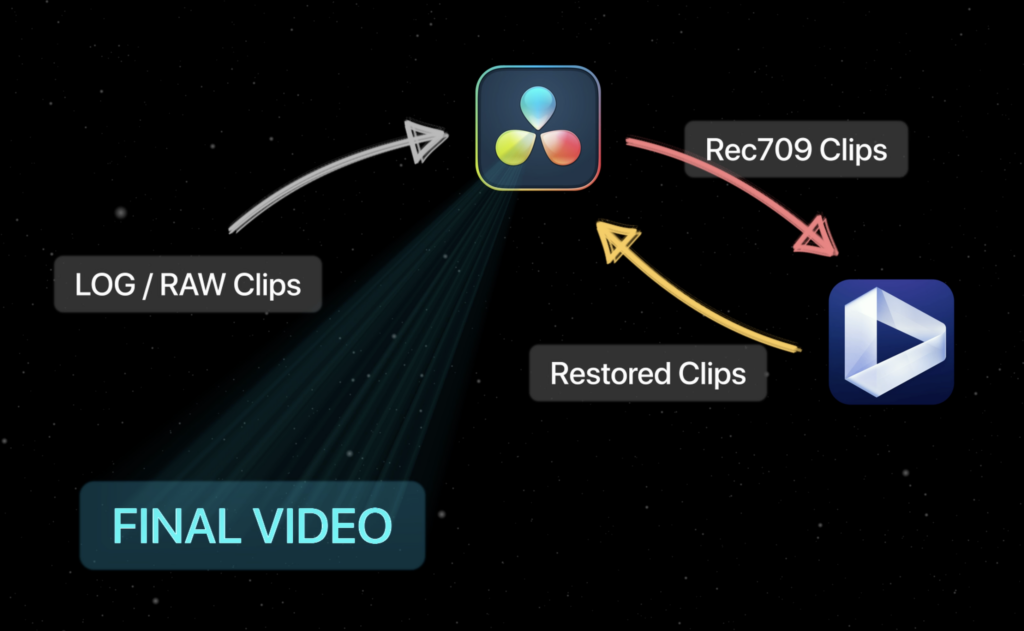
Well, according to Aiarty, they are developing it, so we may be able to see it soon.
This is one feature that will attract professionals – ease in workflow, especially for those who predominantly shoot in LOG or RAW formats.
Even if in the future, Aiarty Video Enhancer has the capability to import and apply LUTs for the LOG clips, it would be nice to not switch between apps while editing using Davinci Resolve Studio or Premiere Pro or Final cut pro.
Why Choose Aiarty Video Enhancer?
It is not like Aiarty Video Enhancer doesn’t have competitors. There are a lot of other emerging software.
Honestly, if they hadn’t reached out to me, I wouldn’t know about them either as MY choice of editing software is Davinci Resolve Studio which has very similar features inbuilt.
At the same time, I am also happy to know about the tools available in the market that can make my life a tad bit easier.
I am not obligated to sell Aiarty Video Enhancer to my audience but I should say, you should give it a try.
Aiarty Video Enhancer is pretty intuitive to use, I didn’t have to go through the user manual to use it properly but if you are looking for the steps, I’ve attached the link in the description below.
As I mentioned earlier, the pricing model is also pretty straight forward. According to what’s shown, “Pay once and enjoy a lifetime of updates”.
I know, $165 is pretty steep for a software especially for what it does and when Davinci Resolve Studio can be purchased for only $295.
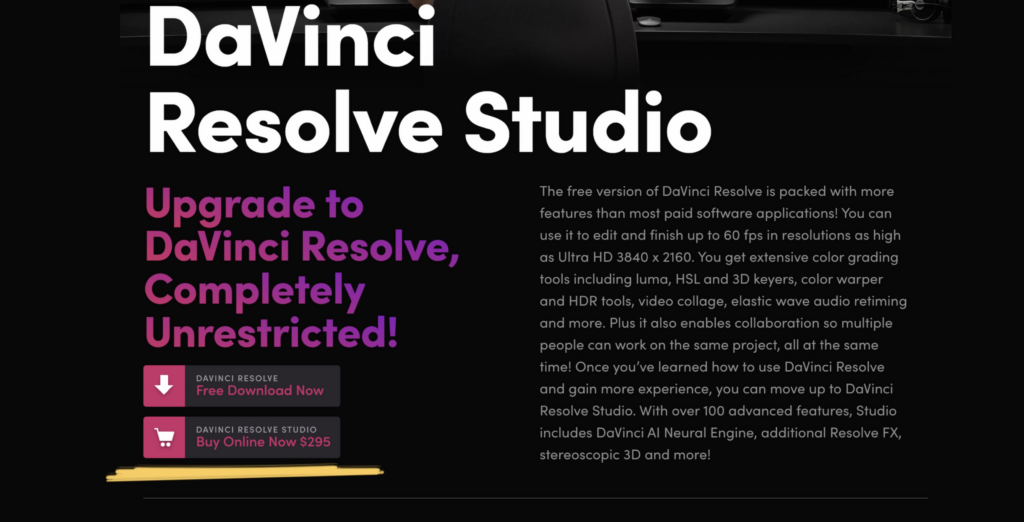
However, this license can be used on up to three computers, so it is a good value proposition compared to a similarly specialized tool like Topaz Video AI for which I paid $299.99 for Topaz Video AI in 2023. It was literally 3 years ago and I haven’t used it for the past 2.5 years.
I got it for its slow motion capabilities as recommended by the Camera conspiracy guy. But yeah, I regret buying it.
Considering that, I think Aiarty Video Enhancer is priced much cheaper while it is on a 30% discount.
Don’t buy it until you try it. I mean, I made the mistake of buying a product recommended by a YouTuber you watch quite often, and ended up not using it at all.
So, head to the free trial section, try the Aiarty Video Enhancer software or even pay a yearly subscription of only $79 to see if that tool is helpful for you before paying for the lifetime amount.
If it doesn’t work for you, you will end up spending only $79 for your curiosity.
It all comes to price whether you can afford it or not. If you can and if it is a tool that you really need then it is a tool worth investing for now and for the future.